Examples
Complete, copy-pasteable examples for common Betamax use cases.
1. Capture htop Screenshot
Capture a PNG screenshot of htop showing system resources.
Keys file: htop-capture.keys
@set:cols:120
@set:rows:30
@set:delay:100
@set:output:./screenshots
@require:termshot

# Wait for htop to initialize and render
@sleep:1000

# Capture the screenshot
@capture:htop.png

# Quit htop
q
Command:
betamax "htop" -f htop-capture.keys
Expected output: A screenshots/htop.png file showing the htop interface with CPU, memory, and process information.
Quick inline version:
betamax "htop" -w "CPU" --cols 120 --rows 30 -- \
  @sleep:1000 @capture:htop.png q
2. Record Vim Session
Record a GIF showing text being typed in Vim.
Keys file: vim-demo.keys
# Test: Record vim session as GIF
# Opens vim, types a message, then quits

@set:cols:80
@set:rows:24
@set:delay:80

# Wait for vim to load
@sleep:400

# Start recording and enter insert mode
@record:start
i
@frame
B
@frame
e
@frame
t
@frame
a
@frame
m
@frame
a
@frame
x
@frame
Space
@frame
:
@frame
)
@frame

# Exit insert mode and pause
Escape
@sleep:300

# Quit vim
:q!
Enter

@record:stop:vim_demo.gif
Command:
betamax 'vim --clean -c "set shortmess+=I"' -f vim-demo.keys
Explanation of directives:
| Directive | Purpose |
|---|---|
@set:cols:80 | Set terminal width to 80 columns |
@set:rows:24 | Set terminal height to 24 rows |
@set:delay:80 | 80ms delay between keys for smooth typing |
@sleep:400 | Wait 400ms for vim to fully load |
@record:start | Begin GIF recording session |
i | Enter vim insert mode |
@frame | Capture current terminal state as a frame |
Escape | Exit insert mode |
:q! and Enter | Quit vim without saving |
@record:stop:vim_demo.gif | Compile frames into GIF |
Expected output: An animated GIF showing "Betamax :)" being typed character by character.
3. Animated Gradient/Logo
Create a smooth animated GIF using the @repeat loop directive.
Keys file: gradient-wave.keys
# Test: Animated rainbow gradient wave on betamax logo
# Creates a GIF showing colors cycling through the ASCII art

@set:cols:50
@set:rows:10
@set:delay:20
@set:gif_delay:50

# Wait for animator to start and display first frame
@sleep:500

# Start recording only after first frame is visible
@record:start
@frame

# Advance through all 24 phases for smooth animation
@repeat:23
Enter
@sleep:50
@frame
@end

@record:stop:gradient_wave.gif
Command:
betamax "./gradient-animator" -f gradient-wave.keys
How @repeat works:
The @repeat:N / @end block repeats the enclosed keys N times. In this example:
@repeat:23
Enter       # Press Enter to advance animation
@sleep:50   # Brief pause
@frame      # Capture frame
@end
This is equivalent to writing those three lines 23 times, but much cleaner.
Key settings:
@set:gif_delay:50- Fast playback at 50ms per frame (20 FPS)@set:delay:20- Minimal delay between keypresses for smooth animation
Expected output: A looping GIF showing colors cycling through ASCII art.
4. CI Integration Example
Use Betamax in GitHub Actions to capture screenshots or test TUI applications.
Workflow: .github/workflows/tui-screenshots.yml
name: TUI Screenshots

on:
  push:
    branches: [main]
  pull_request:

jobs:
  capture:
    runs-on: ubuntu-latest

    steps:
      - uses: actions/checkout@v4

      - name: Install dependencies
        run: |
          sudo apt-get update
          sudo apt-get install -y tmux

          # Install termshot for PNG output
          curl -L https://github.com/homeport/termshot/releases/latest/download/termshot_linux_amd64.tar.gz | tar xz
          sudo mv termshot /usr/local/bin/

          # Install betamax
          git clone https://github.com/marcus/betamax /tmp/betamax
          sudo ln -s /tmp/betamax/betamax /usr/local/bin/betamax

      - name: Build TUI app
        run: make build

      - name: Capture screenshots
        run: |
          mkdir -p screenshots
          betamax "./my-tui-app" -f capture.keys

      - name: Upload screenshots
        uses: actions/upload-artifact@v4
        with:
          name: tui-screenshots
          path: screenshots/
Test keys file: capture.keys
@set:cols:120
@set:rows:40
@set:output:./screenshots
@require:termshot

# Wait for app to start
@sleep:1000
@wait:Ready

# Capture main view
@capture:main-view.png

# Navigate to settings
Tab
Tab
Enter
@sleep:500
@capture:settings-view.png

# Quit
q
y
Testing TUI behavior in CI:
You can also use Betamax to verify TUI behavior by capturing output and comparing:
- name: Test TUI output
  run: |
    betamax "./my-app" -c -- @sleep:500 "test command" Enter @sleep:500 > output.txt
    grep -q "Expected output" output.txt
5. Interactive Debugging
Use the --keep flag to keep the tmux session alive for manual inspection.
Start a session that stays open:
betamax "myapp" -k -f debug.keys
Attach to the session:
tmux attach -t betamax
You can now interact with the application manually. The session name defaults to "betamax" but can be changed with -s:
# Start with custom session name
betamax "myapp" -k -s my-debug-session -f debug.keys

# Attach to custom session
tmux attach -t my-debug-session
Debug keys file with pause:
@set:cols:100
@set:rows:40
@set:delay:200

# Initial setup
@sleep:500
@wait:Ready

# Navigate to problem area
j
j
j
Enter
@sleep:500

# Pause here - session stays open for inspection
@pause

# After pressing Enter, continue
@capture:debug-state.txt
q
The @pause directive:
@pause waits for you to press Enter in the terminal running betamax. This lets you:
- Attach to the tmux session
- Inspect the application state
- Try commands manually
- Press Enter in the original terminal to continue the script
Debugging workflow:
# Terminal 1: Run betamax with pause
betamax "myapp" -k -f debug.keys

# Terminal 2: Attach and inspect
tmux attach -t betamax

# When done inspecting, go back to Terminal 1 and press Enter
Detach without killing session:
When attached to the session, press Ctrl-b d to detach while keeping the session running.
6. Multi-Format Capture
Capture terminal output in multiple formats at once.
Keys file: multi-format.keys
@set:cols:80
@set:rows:24
@set:delay:100
@set:output:./test/output

# Wait for shell prompt
@sleep:500

# Generate some colorful output
echo -e "\033[1;32mBetamax Capture Test\033[0m"
Enter
@sleep:200

echo -e "\033[1;34m══════════════════════\033[0m"
Enter
@sleep:200

echo -e "Format tests: \033[31mtxt\033[0m \033[33mhtml\033[0m \033[36mpng\033[0m"
Enter
@sleep:200

# Capture as txt only
@capture:test_txt.txt

# Capture as html only
@capture:test_html.html

# Capture as png only
@capture:test_png.png

# Capture all formats (no extension = all formats)
@capture:test_all
Expected output files:
test/output/test_txt.txt- Raw text with ANSI codestest/output/test_html.html- Styled HTML with colorstest/output/test_png.png- PNG screenshottest/output/test_all.txt,test_all.html,test_all.png- All formats
7. Complex TUI Navigation
Capture screenshots from multiple views of a TUI application.
Keys file: tui-navigation.keys
@set:cols:200
@set:rows:50
@set:delay:100
@set:output:./screenshots
@set:shell:/bin/bash
@require:termshot

@sleep:500

# View 1: Main dashboard
Escape
Escape
@sleep:100
1
@wait:Dashboard
@sleep:200
@capture:view-dashboard.png

# View 2: Settings panel
Escape
Escape
@sleep:100
2
@wait:Settings
@sleep:200
@capture:view-settings.png

# View 3: Help screen
Escape
Escape
@sleep:100
?
@wait:Help
@sleep:200
@capture:view-help.png

# Quit
Escape
q
y
Pattern: Use @wait:PATTERN to ensure the view is fully loaded before capturing.
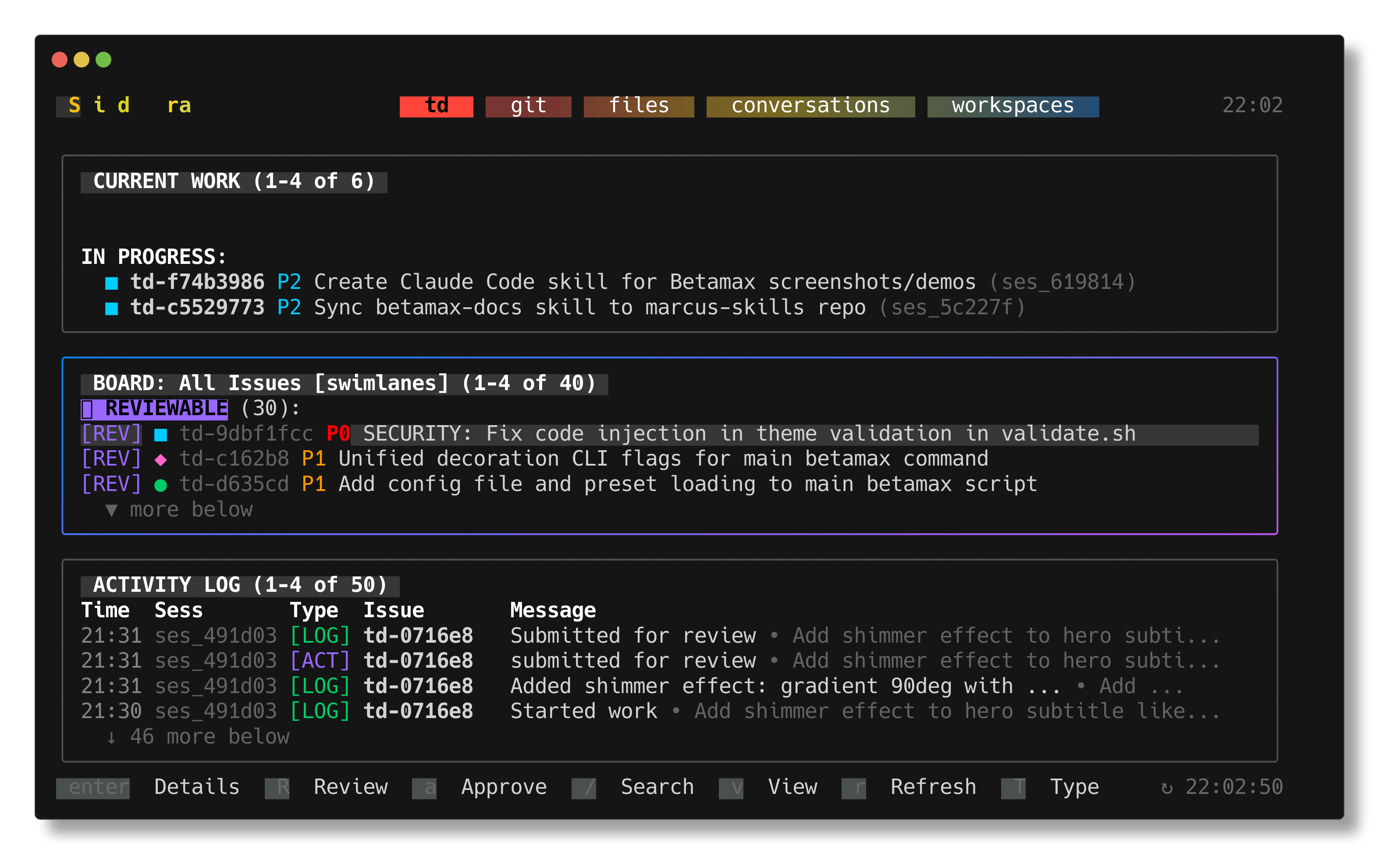
8. Capture Sidecar TUI
Capture a screenshot of the Sidecar TUI application.
Keys file: sidecar_capture.keys
@set:cols:180
@set:rows:45
@set:delay:100
@require:termshot

# Wait for sidecar to fully render
@sleep:2000

# Capture the main view
@capture:sidecar_demo.png

# Quit sidecar
q
y
Command:
betamax "sidecar" -o ./screenshots -f sidecar_capture.keys
Expected output: A PNG screenshot of the Sidecar TUI interface.