Styling Options
Betamax offers extensive visual customization for your terminal captures. You can add window bars, drop shadows, padding, and rounded corners to create polished, professional-looking screenshots and GIFs.
All styling options work with both PNG screenshots and GIF recordings.
Window Bars
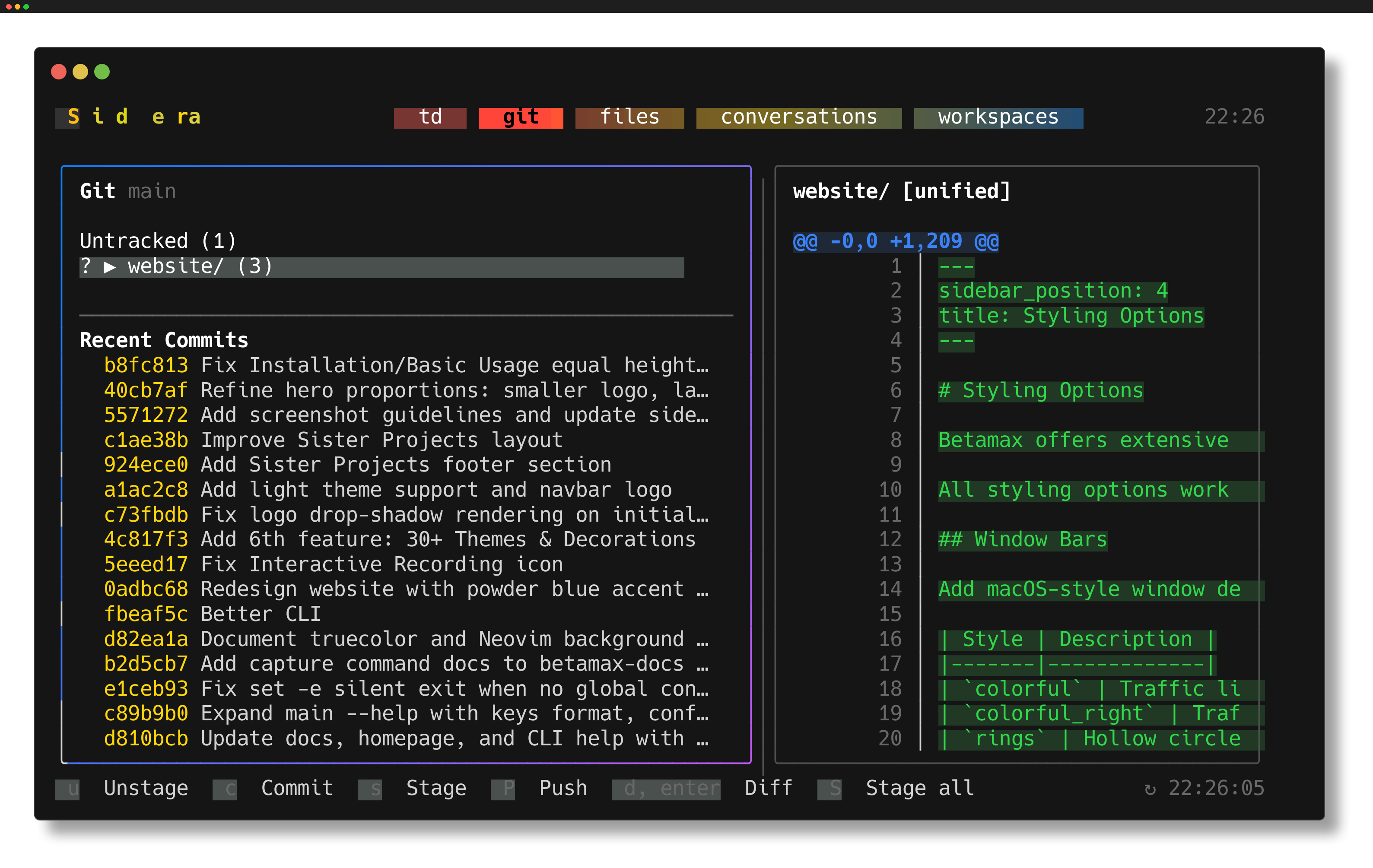
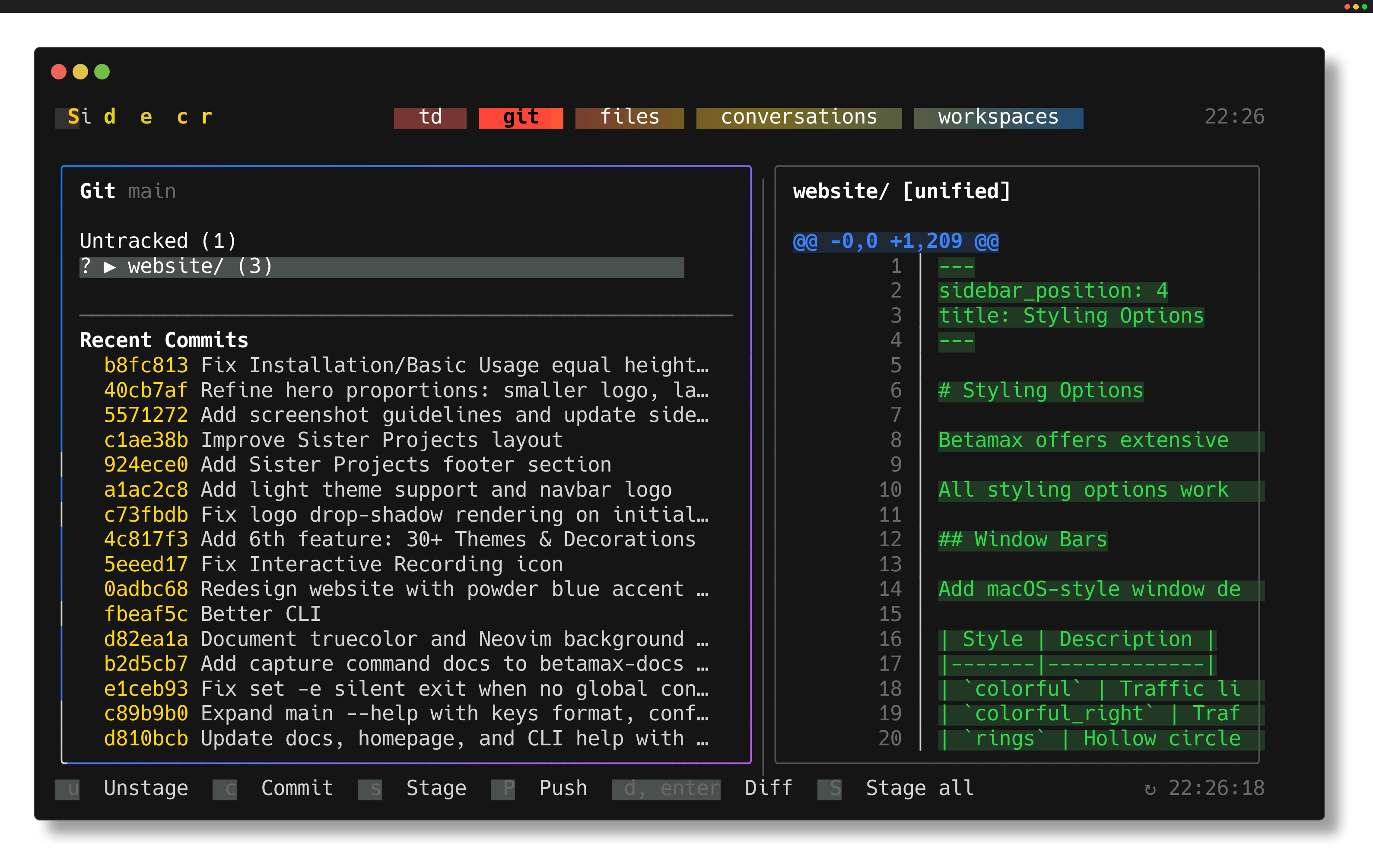
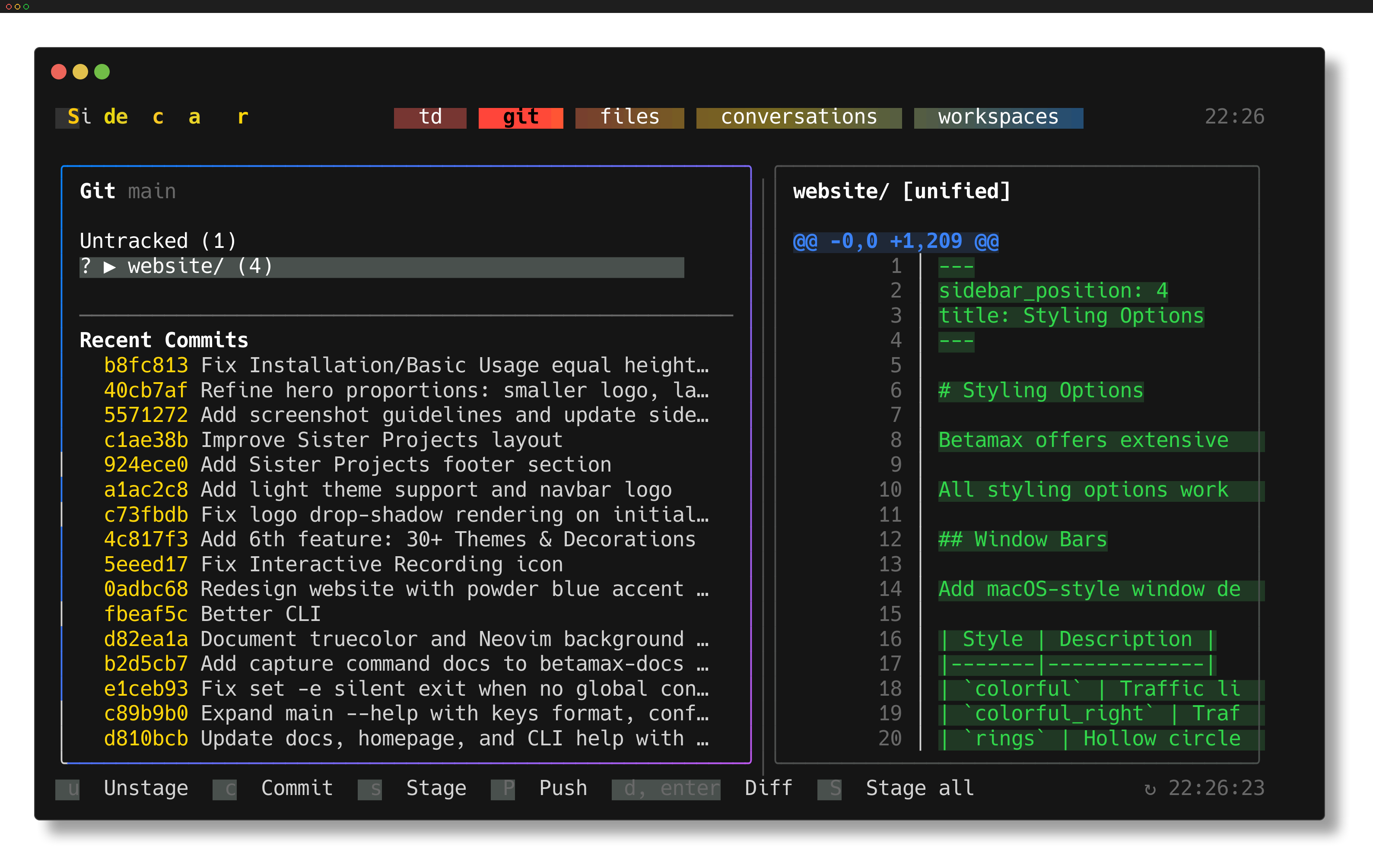
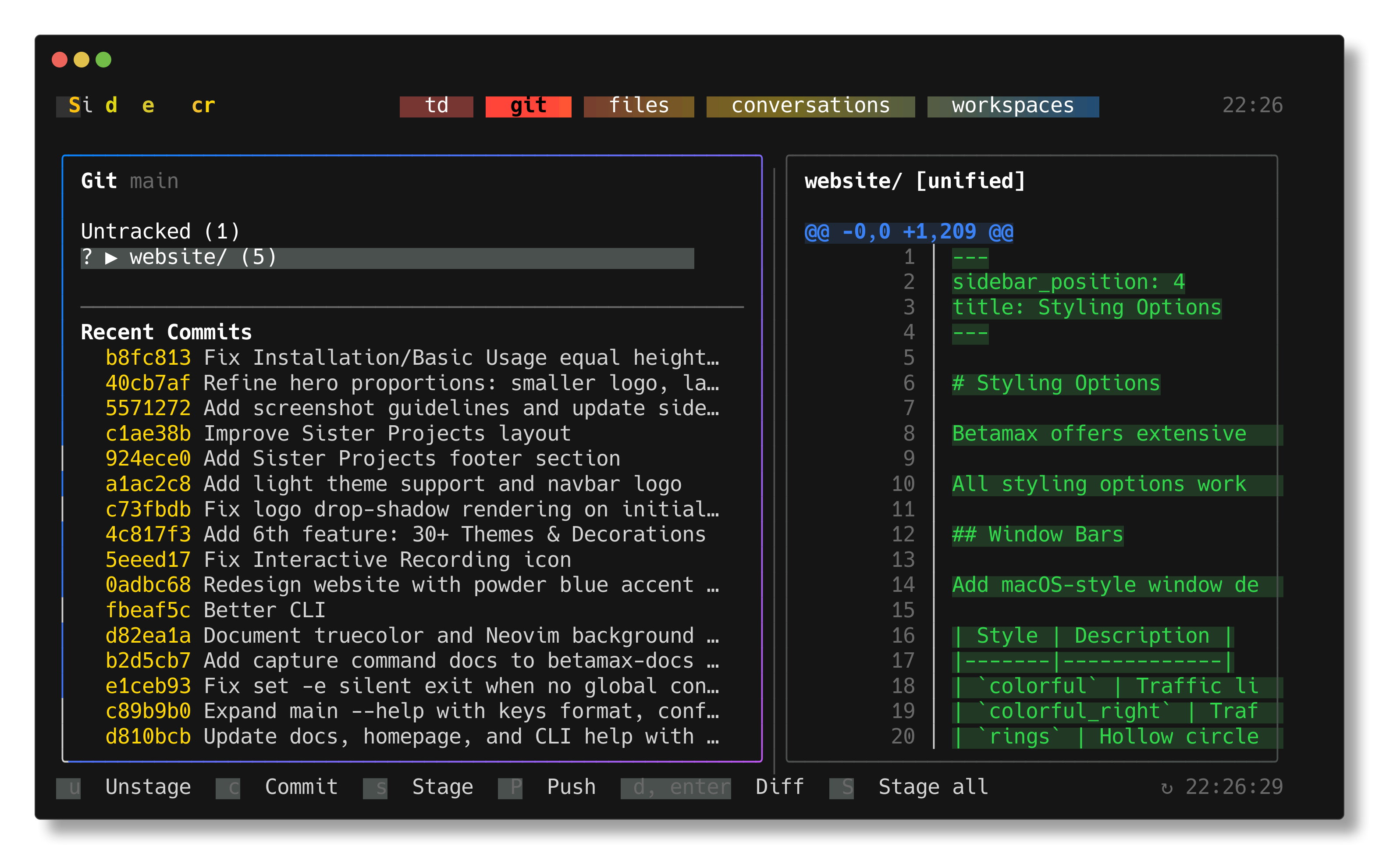
Add macOS-style window decorations to your captures with --window-bar:
| Style | Description |
|---|---|
colorful | Traffic light dots on the left |
colorful_right | Traffic light dots on the right |
rings | Hollow circle outlines |
none | No window bar (default) |
Examples
Colorful (left-aligned):
betamax "sidecar" --window-bar colorful -o demo -- @sleep:2000 @capture:demo.png q y
Colorful (right-aligned):
betamax "sidecar" --window-bar colorful_right -o demo -- @sleep:2000 @capture:demo.png q y
Rings:
betamax "sidecar" --window-bar rings -o demo -- @sleep:2000 @capture:demo.png q y
No window bar:
betamax "sidecar" --window-bar none -o demo -- @sleep:2000 @capture:demo.png q y
Bar Customization
| Option | Default | Description |
|---|---|---|
--bar-color | #1e1e1e | Background color of the bar |
--bar-height | 30 | Height in pixels |
Drop Shadows
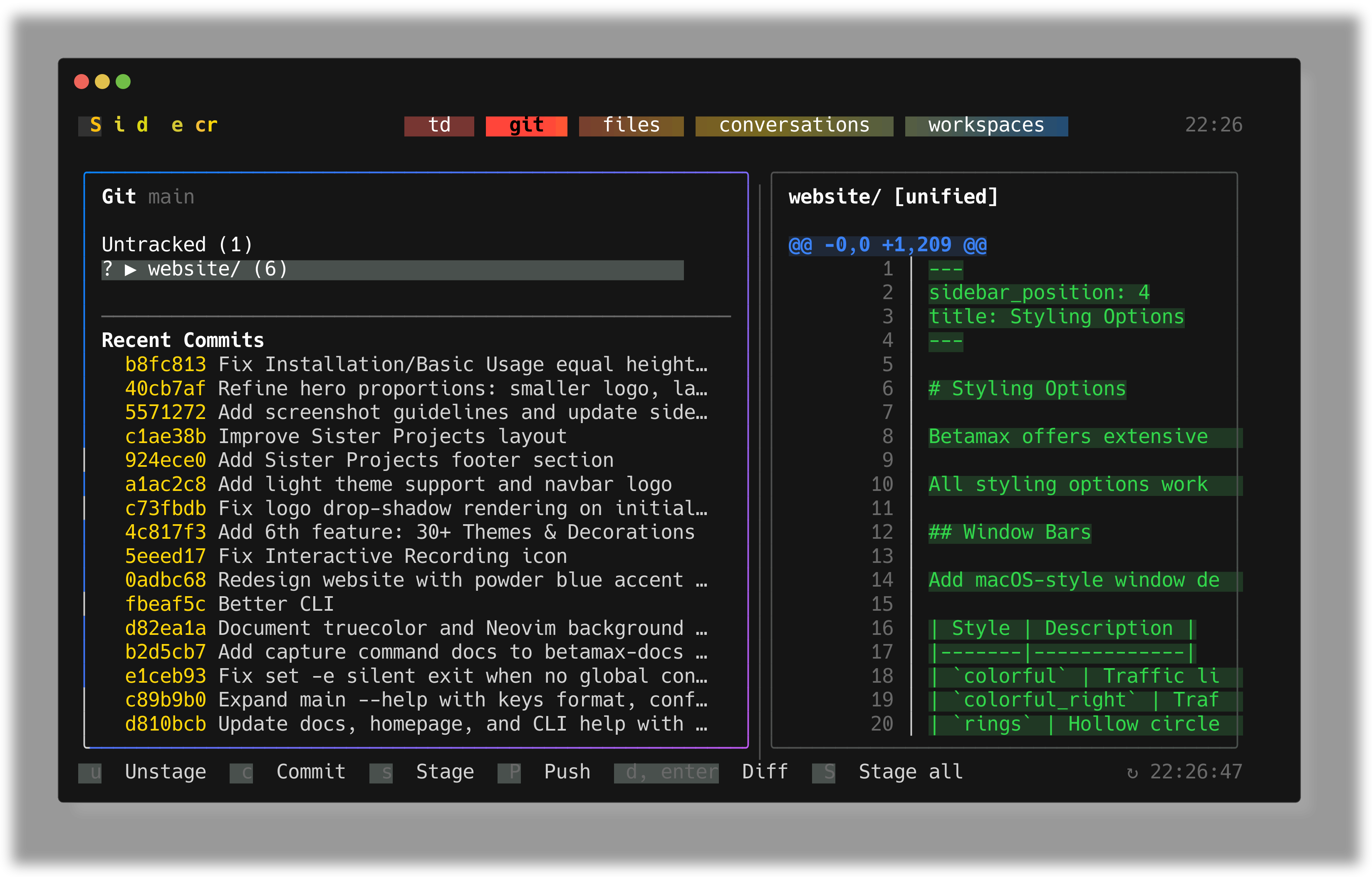
Add depth to your captures with --shadow:
betamax "sidecar" --shadow --margin 30 -o demo -- @sleep:2000 @capture:demo.png q y
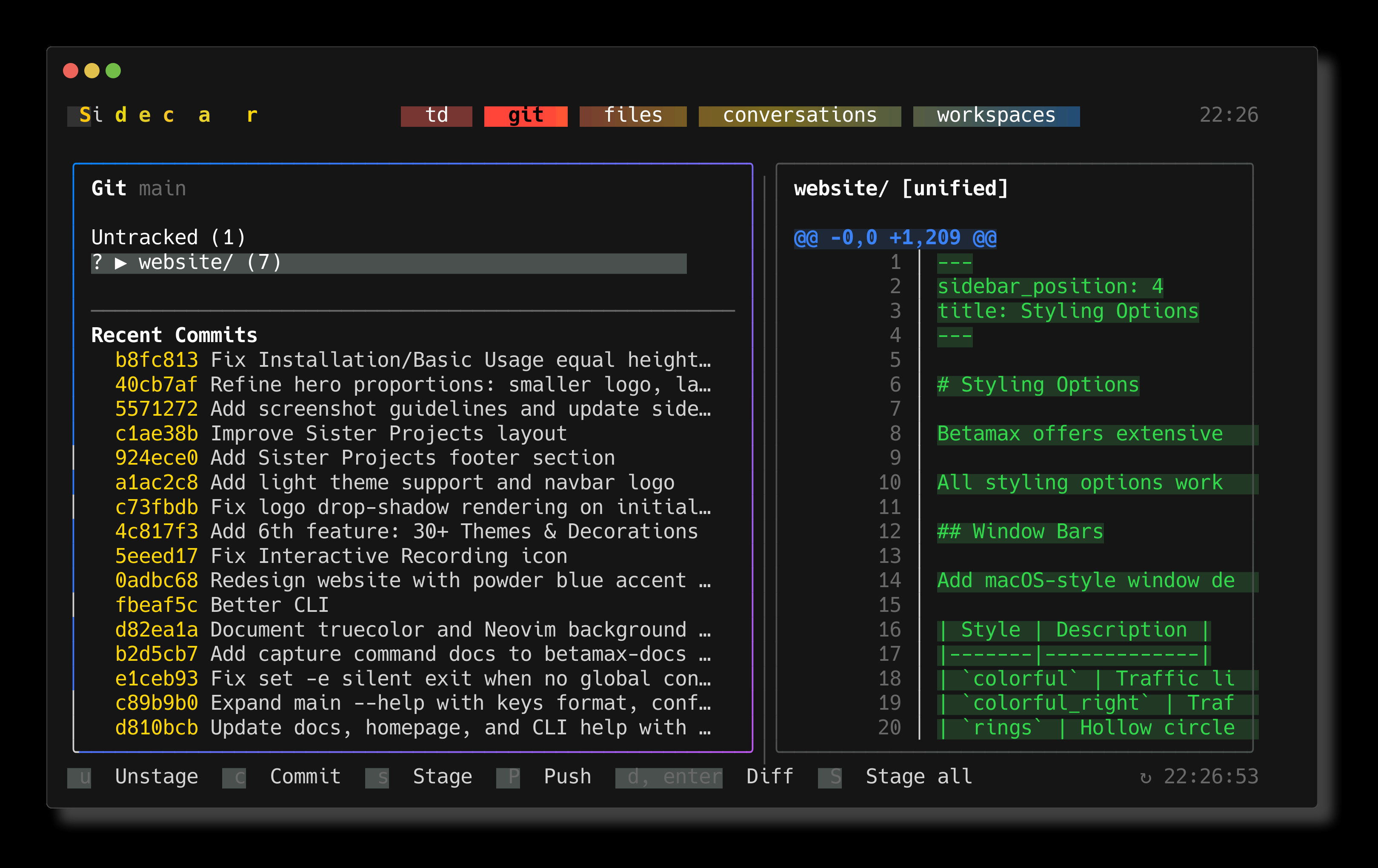
Compare with no shadow (margin only):
betamax "sidecar" --margin 30 -o demo -- @sleep:2000 @capture:demo.png q y
Shadow Options
| Option | Default | Description |
|---|---|---|
--shadow | off | Enable drop shadow |
--shadow-blur | 15 | Blur radius (0-100) |
--shadow-offset-x | 0 | Horizontal offset (-200 to 200) |
--shadow-offset-y | 8 | Vertical offset (-200 to 200) |
--shadow-opacity | 0.4 | Opacity (0.0-1.0) |
--shadow-color | #000000 | Shadow color |
Note: Shadows require --margin to be visible. The margin provides space for the shadow to render.
Padding & Margin
Add spacing around your terminal content:
| Option | Description |
|---|---|
--padding | Inner spacing (between terminal and decorations) |
--margin | Outer spacing (around the entire capture) |
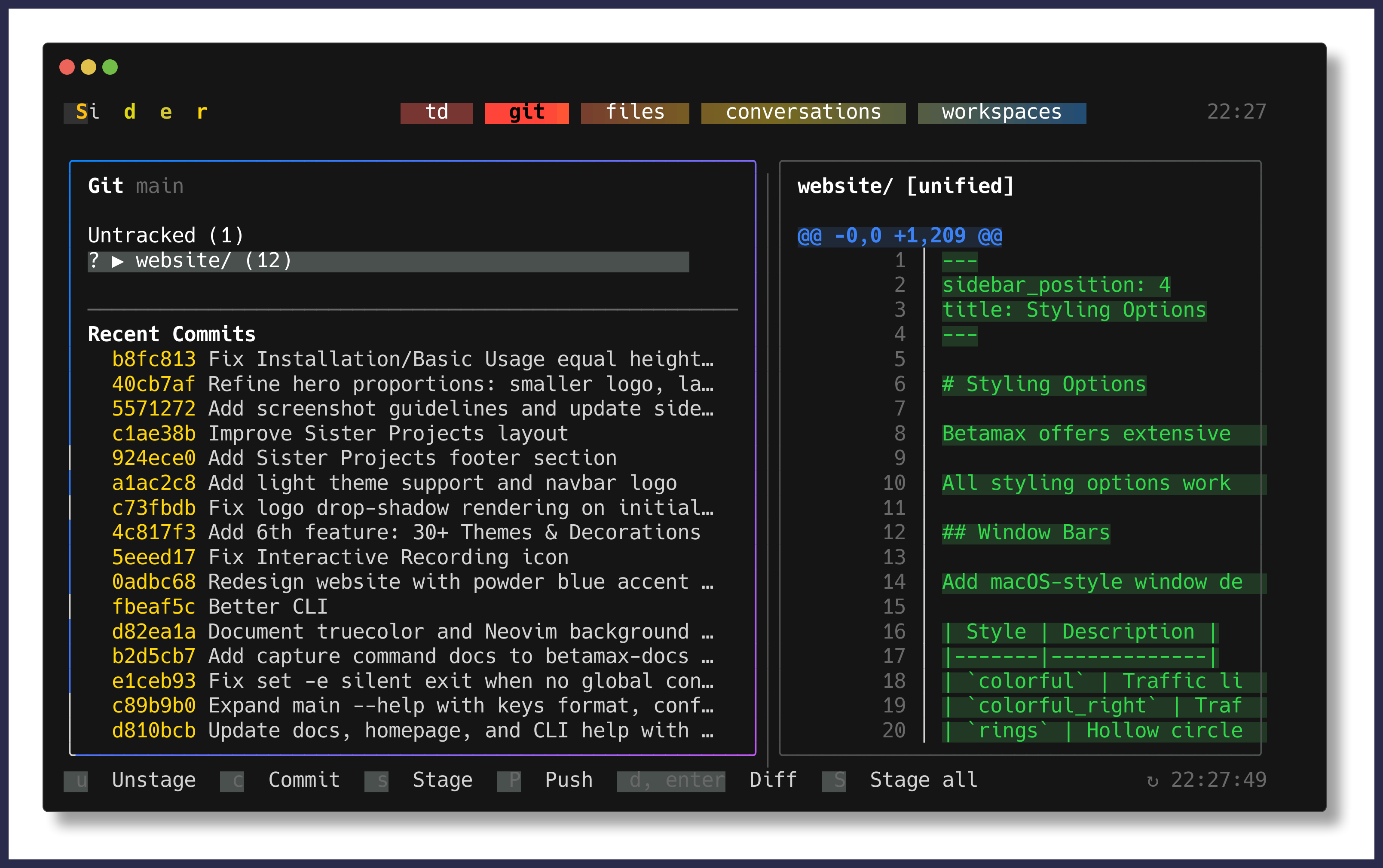
Padding adds space inside the capture, around the terminal content:
betamax "sidecar" --padding 20 --padding-color "#2a2a4a" -o demo -- @sleep:2000 @capture:demo.png q y
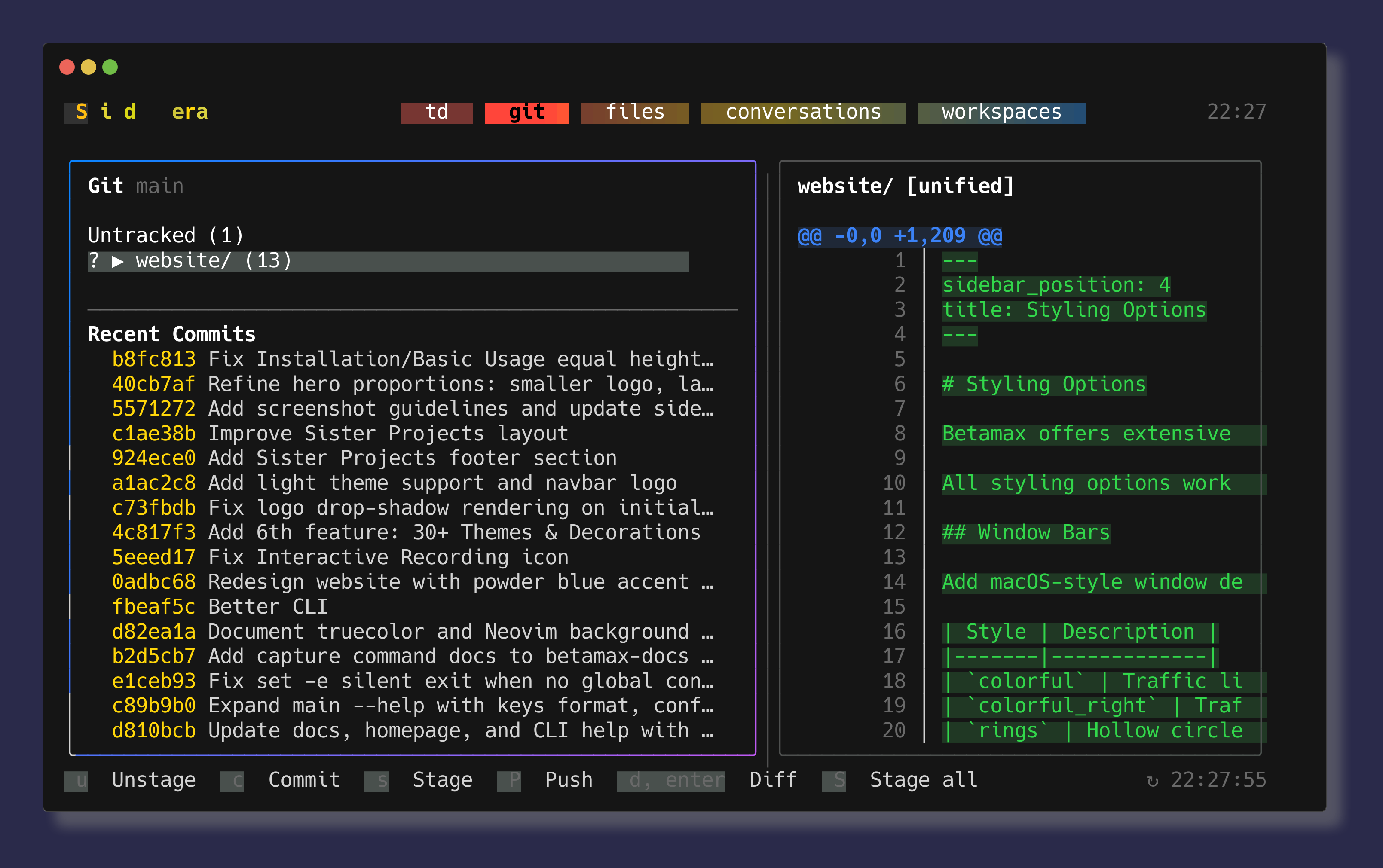
Margin adds space outside the capture:
betamax "sidecar" --margin 20 --margin-color "#2a2a4a" -o demo -- @sleep:2000 @capture:demo.png q y
Spacing Options
| Option | Default | Description |
|---|---|---|
--padding | 0 | Inner padding in pixels |
--padding-color | #1e1e1e | Padding background color |
--margin | 0 | Outer margin in pixels |
--margin-color | #000000 | Margin background color |
Border Radius
Round the corners of your captures with --border-radius:
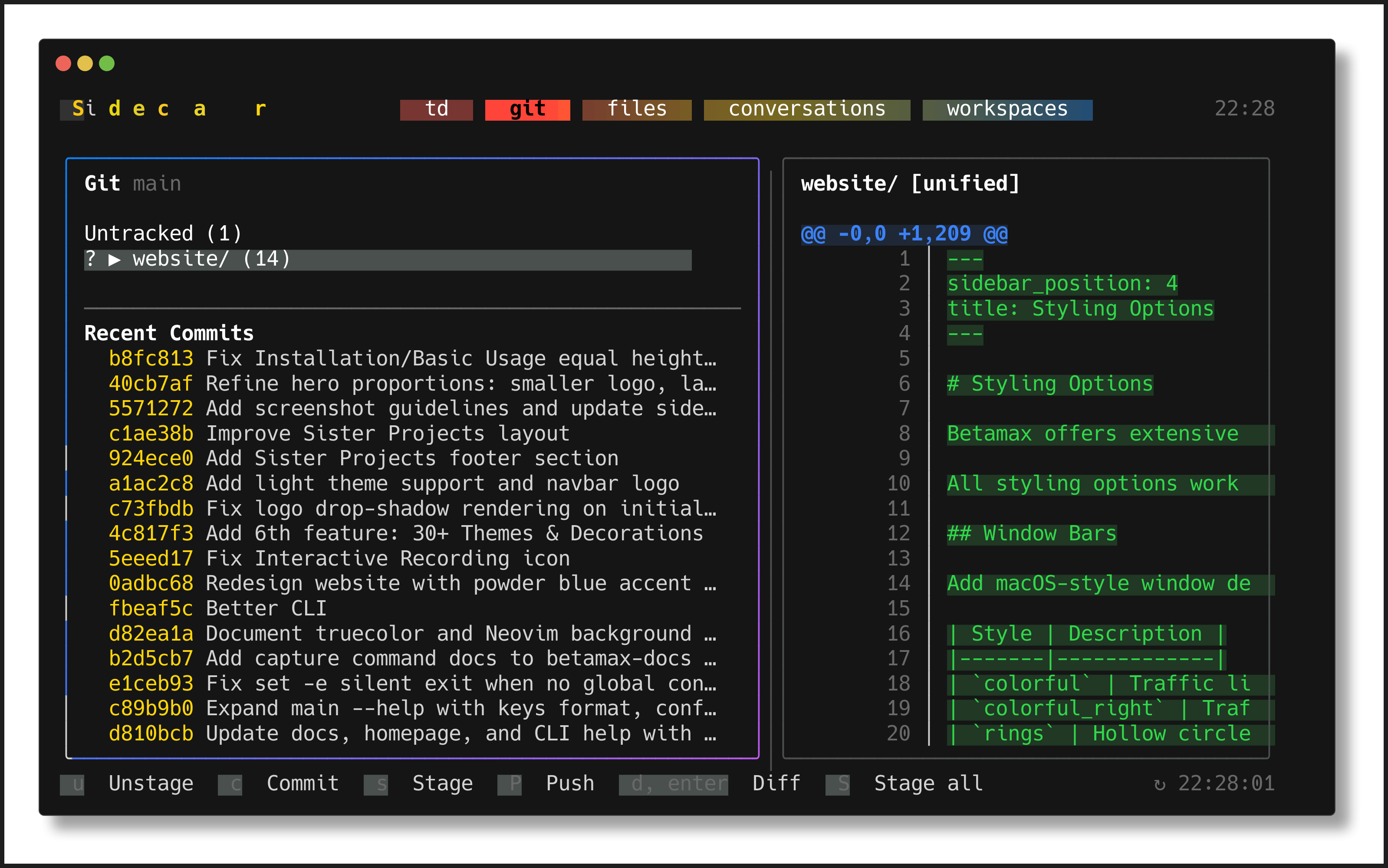
Sharp corners (default):
betamax "sidecar" --border-radius 0 --padding 10 -o demo -- @sleep:2000 @capture:demo.png q y
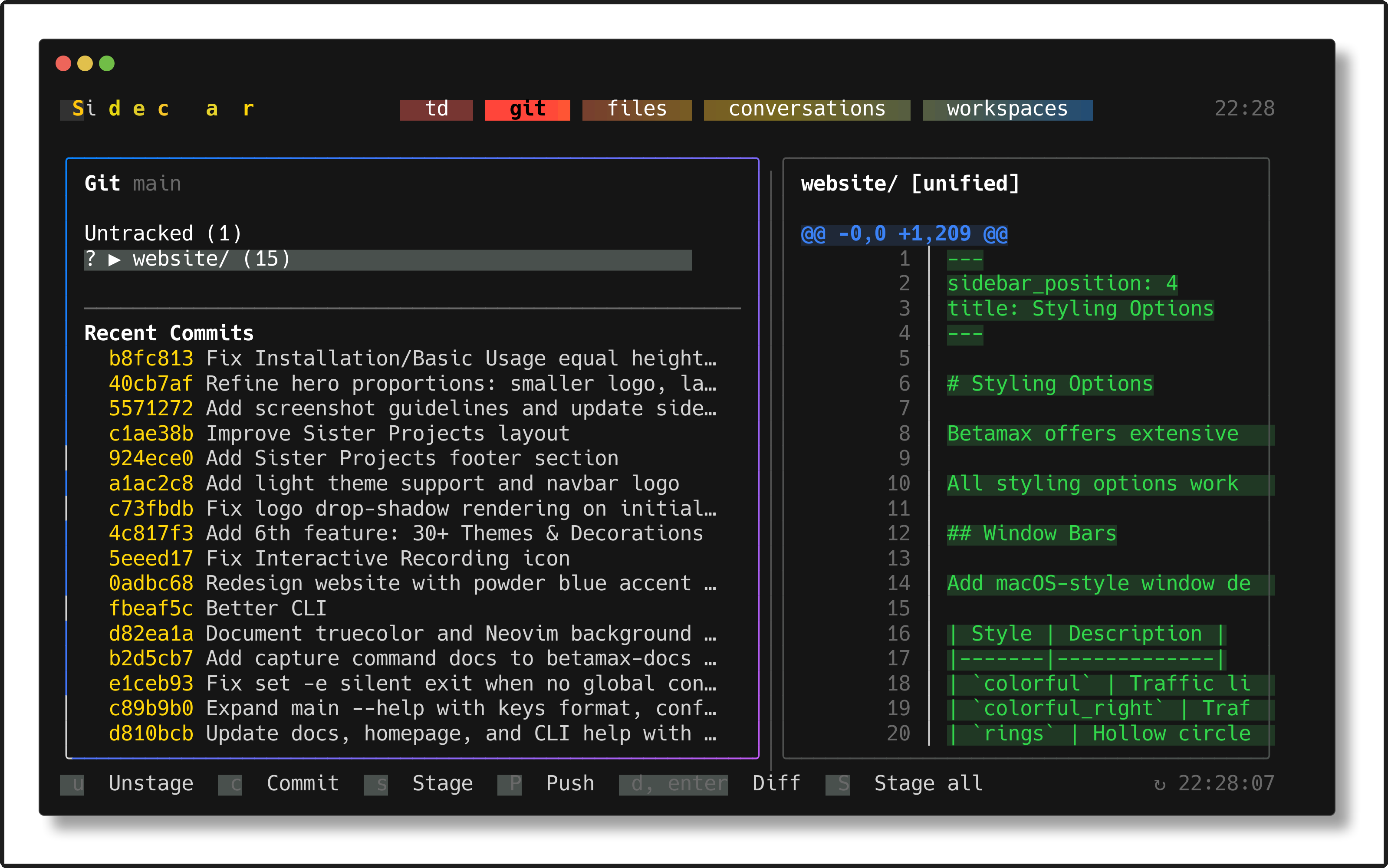
Rounded corners:
betamax "sidecar" --border-radius 16 --padding 10 -o demo -- @sleep:2000 @capture:demo.png q y
Combining Options
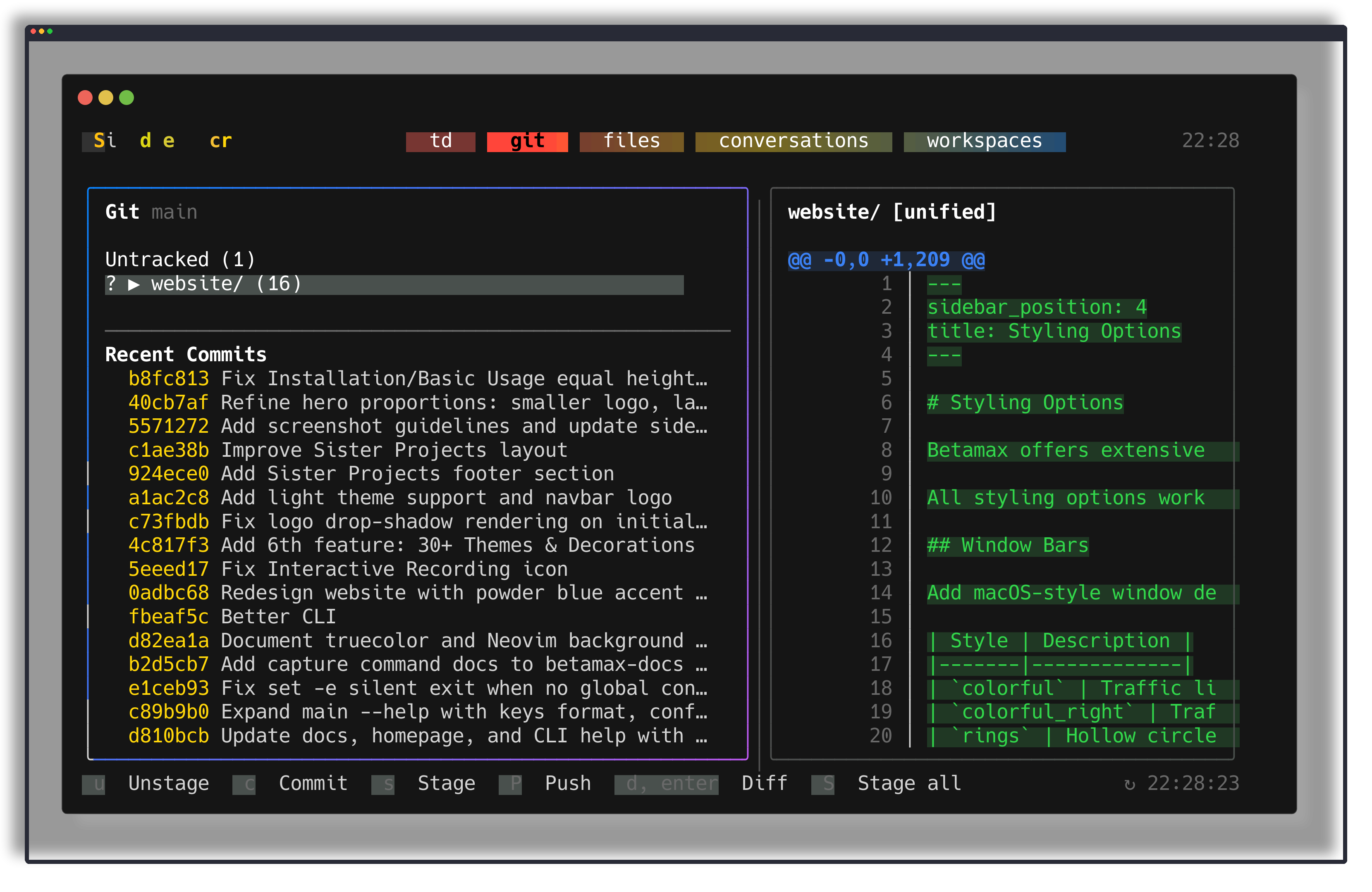
Create polished captures by combining multiple styling options:
betamax "sidecar" \
  --window-bar colorful \
  --border-radius 12 \
  --margin 30 \
  --padding 10 \
  --shadow \
  -o demo -- @sleep:2000 @capture:demo.png q y
Using Keys Files
All styling options can be set in .keys files with @set: directives:
@set:window_bar:colorful
@set:border_radius:12
@set:margin:30
@set:padding:10
@set:shadow:true
@set:shadow_blur:20
@set:shadow_opacity:0.5

@sleep:2000
@capture:styled_demo.png
q
y
This makes it easy to create reproducible, styled captures.
See Also
- CLI Reference - Complete list of all command-line options
- Keys File Format - Full
@set:directive reference - Capturing Screenshots - Screenshot capture guide