Recording GIFs
Betamax can record terminal sessions as animated GIFs, giving you precise control over which frames appear in the final animation.
Overview
GIF recording is useful for:
- Creating documentation demos
- Recording TUI application workflows
- Generating visual regression tests
- Building tutorials that show terminal interactions
Unlike screen recording tools that capture everything, Betamax captures frames only at explicit points you define. This produces smaller, cleaner GIFs that focus on what matters.
Prerequisites
GIF recording requires two dependencies:
# macOS
brew install homeport/tap/termshot ffmpeg

# Or install separately
brew install ffmpeg
brew install homeport/tap/termshot
Verify installation:
which termshot ffmpeg
You can also use @require in your keys file to fail fast if dependencies are missing:
@require:termshot
@require:ffmpeg
Basic Recording
A GIF recording session has three parts:
@record:start- Begin capturing frames@frame- Capture the current terminal state@record:stop:NAME.gif- Compile frames and save
@record:start

# ... send keys and capture frames ...

@record:stop:demo.gif
Frames are only captured at explicit @frame directives. Everything between frames is not recorded.
Pause and Resume Recording
The @record:pause and @record:resume directives let you temporarily stop and restart frame capture without ending the recording session. This is useful for skipping parts of a session you don't want in the final GIF.
@record:start

# Record initial interaction
j
@frame
j
@frame

# Skip a slow operation
@record:pause
@wait:/Build complete/    # Wait but don't capture frames
@record:resume

# Continue recording
k
@frame

@record:stop:demo.gif
When paused:
- The terminal session continues running normally
@framedirectives are ignored- Keys and commands still execute
When resumed:
- A frame is automatically captured to show the current state
- Subsequent
@framedirectives capture as normal
Use cases:
- Skip slow operations: Pause during builds or long-running commands
- Skip sensitive input: Pause while entering credentials
- Multiple segments: Record intro, pause for uninteresting middle, resume for ending
Hide and Show with @hide/@show
The @hide and @show directives control visibility without the automatic frame capture that @record:resume provides. Use these when you want to hide setup or boilerplate without a visible "jump" in the recording.
@record:start

# Setup (hidden from recording)
@hide
cd ~/projects/myapp
npm install
@show

# Record the important part
npm run demo
@frame

@record:stop:demo.gif
Key differences from @record:pause/@record:resume:
| Directive | On Resume | Use Case |
|---|---|---|
@record:pause → @record:resume | Auto-captures frame | Skip slow operations, show result |
@hide → @show | No auto-capture | Hide setup/boilerplate seamlessly |
Use @hide/@show when you want hidden operations to be invisible in the final GIF. Use @record:pause/@record:resume when you want to show the outcome after skipping.
Frame Control with @frame
The @frame directive captures the current terminal state as a frame in your GIF. Place it after each key or action you want visible in the animation.
@record:start

i           # Enter insert mode (not captured)
@frame      # Capture after 'i'
H           # Type H (not captured yet)
@frame      # Capture showing 'H'
e           # Type e
@frame      # Capture showing 'He'
l           # Type l
@frame      # Capture showing 'Hel'

@record:stop:typing.gif
Only the states captured by @frame appear in the final GIF. Keys sent without a following @frame are not visible in the animation.
Sleep with Capture
The @sleep:MS:capture syntax combines a pause with frame capture. It captures a frame before and after the sleep, creating a visual pause in the animation.
@record:start

@frame
# Do something
j
@frame

@sleep:500:capture    # Captures frame, waits 500ms, captures another frame

# Continue
k
@frame

@record:stop:demo.gif
This is useful for:
- Adding pauses to let viewers read content
- Showing state changes that happen during a wait
- Creating emphasis on particular states
Note: @sleep:MS without :capture does not capture frames. Use the explicit :capture suffix when you want frames recorded during sleeps.
Setting GIF Delay
The @set:gif_delay:MS directive controls how long each frame displays during playback. The default is 200ms.
@set:gif_delay:100    # Fast playback (100ms per frame)

@record:start
# ... frames ...
@record:stop:fast.gif
@set:gif_delay:500    # Slow playback (500ms per frame)

@record:start
# ... frames ...
@record:stop:slow.gif
Lower values create faster, snappier animations. Higher values give viewers more time to see each frame. Choose based on your content:
- Typing demos: 50-100ms
- UI navigation: 150-200ms
- Complex state changes: 300-500ms
Playback Speed
The @set:speed:N directive controls the overall playback speed multiplier. The default is 1.0 (normal speed).
@set:speed:2.0    # 2x faster playback

@record:start
# ... frames ...
@record:stop:fast.gif
@set:speed:0.5    # Half speed (slow motion)

@record:start
# ... frames ...
@record:stop:slow.gif
Valid speed values range from 0.25 (4x slower) to 4.0 (4x faster):
@set:speed:0.25- Quarter speed (slow motion)@set:speed:0.5- Half speed@set:speed:1.0- Normal speed (default)@set:speed:2.0- Double speed@set:speed:4.0- Maximum speed
Speed works together with gif_delay. A GIF with @set:gif_delay:200 and @set:speed:2.0 will play at effectively 100ms per frame.
Seamless Looping with @set:loop_offset
The @set:loop_offset:MS directive creates seamless GIF loops by duplicating the initial frames at the end. This makes the GIF appear to loop smoothly rather than jumping back to frame 1.
@set:gif_delay:150
@set:loop_offset:500    # Duplicate first 500ms of frames at end

@record:start
# ... your animation ...
@record:stop:smooth-loop.gif
The number of duplicated frames is calculated as: loop_offset_ms / gif_delay_ms. For example, with a 500ms loop offset and 150ms frame delay, approximately 3 frames are duplicated.
Use loop offset when:
- Creating repeating animations that should feel continuous
- Recording progress indicators or loading animations
- Making demos that loop without a visible "reset" moment
Without loop offset, GIFs jump abruptly from the last frame back to the first. With loop offset, the transition is gradual, using familiar frames the viewer has already seen.
GIF Decorations
Betamax can add visual decorations to your GIFs, making them look polished and professional. Decorations are applied during GIF generation and don't affect the terminal session.
Decoration Backend Requirements
Decorations require either Pillow (Python) or ImageMagick to generate window bars and corner masks:
# Option 1: Pillow (recommended - faster, pure Python)
pip install Pillow

# Option 2: ImageMagick (fallback)
brew install imagemagick    # macOS
apt install imagemagick     # Ubuntu/Debian
Betamax automatically uses Pillow if available, falling back to ImageMagick. If neither is installed, decorations are silently skipped.
Window Bar
Add a macOS-style window bar with traffic light buttons:
@set:window_bar:colorful # Red/yellow/green dots on left
Available styles:
| Style | Description |
|---|---|
colorful | Traffic light dots (red, yellow, green) on the left |
colorful_right | Traffic light dots on the right |
rings | Hollow circle outlines instead of filled dots |
none | No window bar (default) |
Customize the bar background color and height:
@set:window_bar:colorful
@set:bar_color:282a36       # Dracula theme background
@set:bar_height:24          # Shorter bar (default: 30)
Rounded Corners
Add rounded corners to soften the terminal edges:
@set:border_radius:8 # 8 pixel corner radius
Rounded corners work well with window bars for a native app look.
Margin and Padding
Add spacing around your GIF:
@set:padding:10             # 10px inner padding (inside rounded corners)
@set:padding_color:1e1e1e   # Padding background color

@set:margin:20              # 20px outer margin
@set:margin_color:000000    # Margin background color
Padding adds space inside the rounded corners, between the terminal content and the border.
Margin adds space outside the entire composition, useful for embedding GIFs on dark or light backgrounds.
Color Values
Colors are specified as 6 hex digits without the # prefix (since # starts comments in keys files):
@set:bar_color:1e1e1e       # Dark gray
@set:margin_color:ffffff    # White
@set:padding_color:282a36   # Dracula purple-gray
Complete Decoration Example
Here's a fully decorated GIF configuration:
# polished-demo.keys

@set:cols:80
@set:rows:24
@set:delay:80
@set:gif_delay:150

# Decorations
@set:window_bar:colorful
@set:bar_color:282a36
@set:border_radius:8
@set:padding:10
@set:padding_color:282a36
@set:margin:20
@set:margin_color:1a1a2e

@require:termshot
@require:ffmpeg

@sleep:400
@record:start

# ... your recording ...

@record:stop:polished-demo.gif
This creates a GIF with:
- macOS-style window bar with Dracula theme colors
- 8px rounded corners
- 10px inner padding matching the bar color
- 20px outer margin in a darker shade
Decoration Order
Decorations are applied in this order:
- Padding - Added inside, around the terminal content
- Window bar - Added at the top
- Rounded corners - Applied to the composition
- Margin - Added outside, around everything
This means rounded corners apply to both the terminal content and the window bar, creating a cohesive look.
Reusing Decorations with @source
Use @source to share decoration settings across multiple recordings:
# themes/dracula.keys
@set:window_bar:colorful
@set:bar_color:282a36
@set:border_radius:8
@set:padding:10
@set:padding_color:282a36
@set:margin:20
@set:margin_color:1a1a2e
# demos/my-demo.keys
@source:../themes/dracula.keys

@set:cols:80
@set:rows:24
@set:gif_delay:150

@record:start
# ... your recording with consistent styling
@record:stop:my-demo.gif
This keeps your recordings visually consistent and makes it easy to update the theme across all demos.
CLI Decoration Overrides
You can override any decoration setting from the command line without editing the keys file:
# Keys file has @set:theme:nord, but CLI wins:
betamax "myapp" -f demo.keys --theme dracula --shadow --window-bar colorful
Precedence: CLI flags > @set: directives > .betamaxrc > global config > preset > defaults.
This is useful for testing different visual styles or when the same keys file is used in different contexts (e.g., light theme for docs, dark theme for presentations).
Loop Animations with @repeat
The @repeat:N and @end directives create loops for repetitive frame sequences. This is useful for animations that cycle through states.
@record:start
@frame

@repeat:10
j           # Navigate down
@frame
@end

@record:stop:scroll.gif
The block between @repeat:N and @end executes N times. This example captures 10 frames of downward navigation.
Loops can include sleeps and multiple keys:
@record:start

@repeat:24
Enter           # Advance animation frame
@sleep:50
@frame
@end

@record:stop:animation.gif
Complete Example
Here's the output of this example:
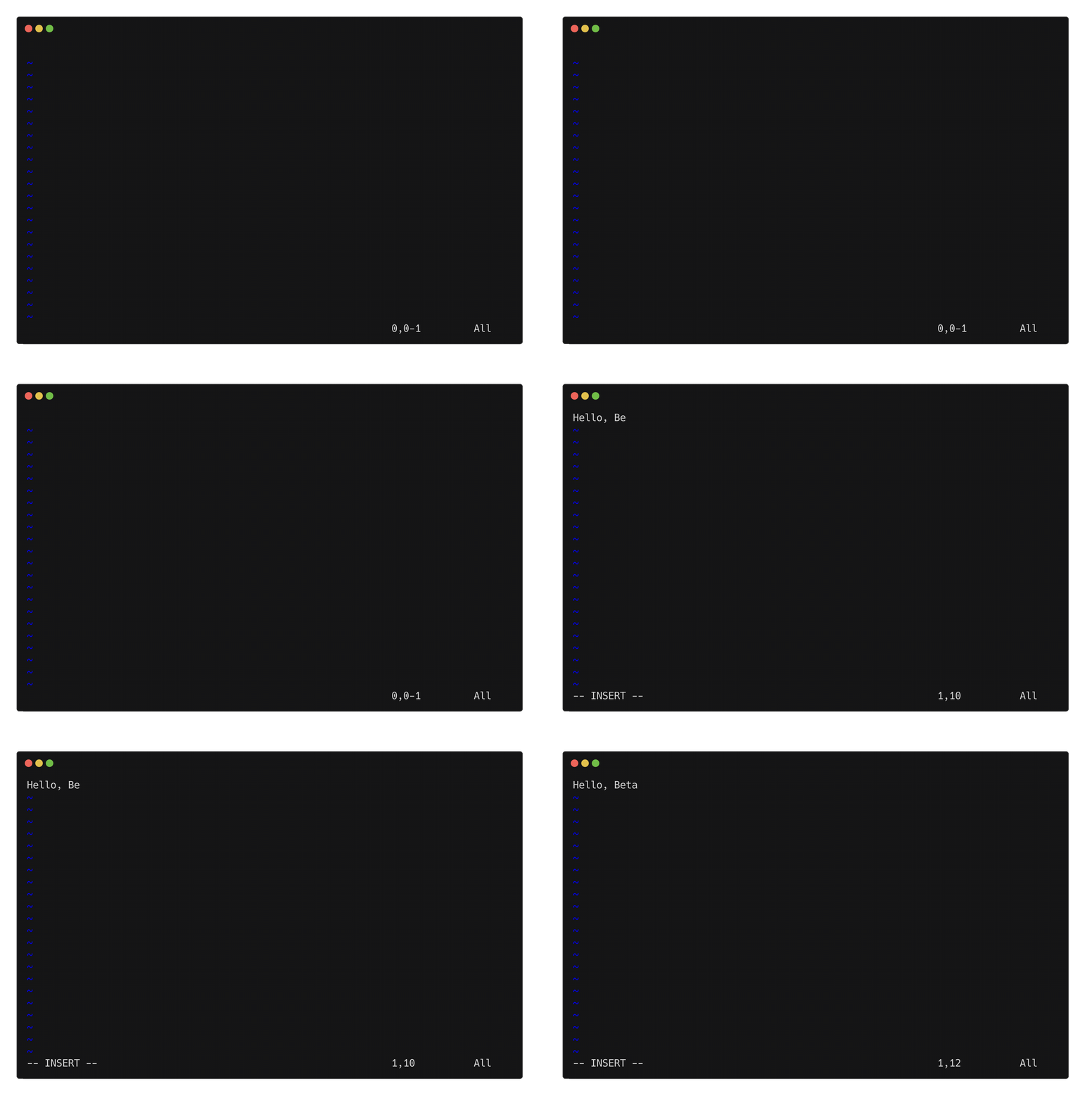
This example records a vim session typing a message:
# vim_demo.keys

@set:cols:80
@set:rows:24
@set:delay:80
@set:gif_delay:150

@require:termshot
@require:ffmpeg

# Wait for vim to load
@sleep:400

# Start recording and enter insert mode
@record:start
i
@frame

# Type message with frame after each character
B
@frame
e
@frame
t
@frame
a
@frame
m
@frame
a
@frame
x
@frame
Space
@frame
:
@frame
)
@frame

# Exit insert mode and pause to show result
Escape
@sleep:300

# Quit vim
:q!
Enter

@record:stop:vim_demo.gif
Run with:
betamax 'vim --clean -c "set shortmess+=I"' -f vim_demo.keys
Animated Loop Example
This example creates a smooth looping animation by cycling through frames:
# gradient_animation.keys

@set:cols:50
@set:rows:10
@set:delay:20
@set:gif_delay:50

# Wait for app to display first frame
@sleep:500

# Start recording
@record:start
@frame

# Cycle through 24 animation phases
@repeat:23
Enter
@sleep:50
@frame
@end

@record:stop:gradient_wave.gif
Tips for Smooth Recordings
Plan Your Frames
Decide which states you want visible before writing the keys file. Not every key press needs a frame.
Use Consistent Timing
Set @set:delay:MS low enough that typing feels natural, but give enough time for the terminal to render between keys.
@set:delay:80 # 80ms between keys works well for most apps
Set Terminal Size
Always specify terminal dimensions for reproducible recordings:
@set:cols:80
@set:rows:24
Wait for App Startup
Add a sleep before @record:start to ensure the application is fully loaded:
@sleep:500        # Wait for app
@record:start     # Then start recording
Handle Apps That Exit
For applications that quit (like vim with :q!), frames captured after exit are gracefully skipped. Place @record:stop after your quit commands.
Keep GIFs Focused
Shorter, focused GIFs are more effective than long recordings. Aim for 5-15 frames that show a specific workflow.
Test Without Recording First
Debug your keys file without GIF recording first, then add @record:start, @frame, and @record:stop once the interaction works correctly.